

Think about how many times a day you reach for the mouse to copy something, switch a window, or open a new tab. Each trip takes only a second or two. But over a full workday, those small movements add up to a surprising amount of lost time.
Keyboard shortcuts fix that. A shortcut is a key or a combination of keys that triggers a command without you hunting through menus. Learn a handful of them and you’ll notice your work gets smoother almost immediately. Students use them to finish assignments faster, office workers use them to get through spreadsheets, and developers use them to stay in flow.
This guide covers the shortcuts that matter most, grouped by where you’ll actually use them.
Why Keyboard Shortcuts Are Worth Learning
The obvious benefit is speed. Pressing two keys is quicker than moving a cursor, finding a menu, and clicking through three options.
There are other benefits too:
- Less strain on your wrist and hand. Constantly switching between keyboard and mouse tires the same muscles. Shortcuts let your hands stay in one place.
- Better focus. When you don’t have to look around the screen for a button, your attention stays on the actual work.
- Accessibility. For people who find a mouse difficult to use, or who rely on assistive technology, keyboard navigation is often the main way to use a computer.
- A backup plan. If your touchpad stops working or your mouse battery dies mid-task, you can still get things done.
The Basics: Shortcuts That Work Almost Everywhere
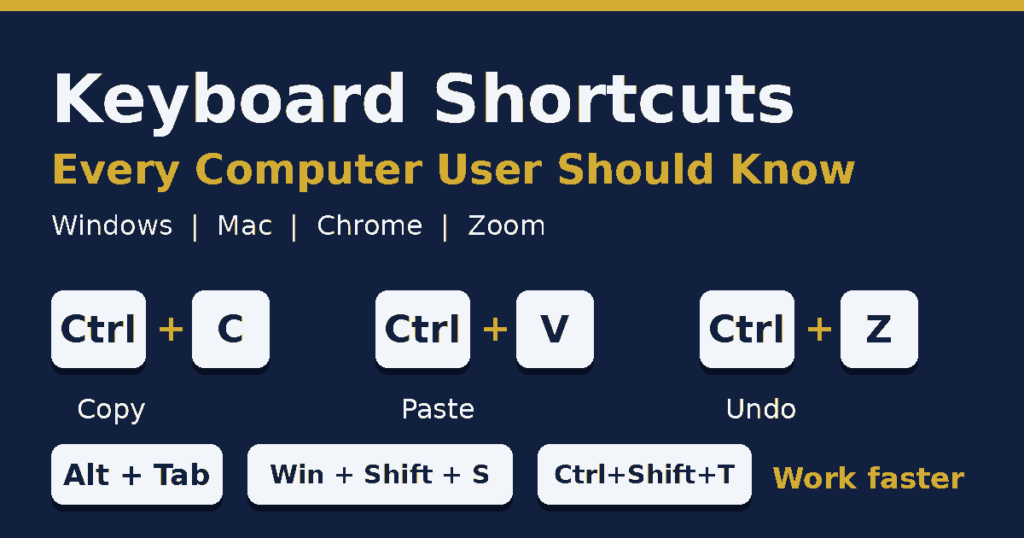
These are the ones to learn first. On Windows you’ll use the Ctrl key. On a Mac, the Command key (⌘) does the same job.
| Action | Windows | Mac |
|---|---|---|
| Copy | Ctrl + C | Cmd + C |
| Cut | Ctrl + X | Cmd + X |
| Paste | Ctrl + V | Cmd + V |
| Undo | Ctrl + Z | Cmd + Z |
| Redo | Ctrl + Y | Cmd + Shift + Z |
| Select all | Ctrl + A | Cmd + A |
| Save | Ctrl + S | Cmd + S |
| Ctrl + P | Cmd + P | |
| Find | Ctrl + F | Cmd + F |
If you only remember one from this list, make it Ctrl + Z. It has rescued more accidentally deleted paragraphs than anything else.
Windows Shortcuts for Everyday Use
Windows has a whole set of shortcuts built around the Windows logo key. Here are the ones worth keeping handy.
- Windows key + D: Show or hide the desktop. Handy when you need to find a file quickly.
- Windows key + E: Open File Explorer.
- Windows key + L: Lock your computer. Good habit whenever you step away from your desk.
- Windows key + V: Open clipboard history, so you can paste something you copied earlier, not just the last item.
- Windows key + Shift + S: Take a screenshot of a selected area.
- Windows key + I: Open Settings.
- Alt + Tab: Switch between open apps.
- Alt + F4: Close the active window.
- Ctrl + Shift + Esc: Open Task Manager directly, which is a lifesaver when a program freezes.
- Windows key + Arrow keys: Snap windows to the sides of the screen, useful when you want two documents side by side.
Text Editing Shortcuts That Save the Most Time
If you write emails, reports, or blog posts, these will become second nature quickly.
- Ctrl + B, Ctrl + I, Ctrl + U: Bold, italicize, and underline selected text.
- Ctrl + Left or Right Arrow: Jump one word at a time instead of one letter.
- Ctrl + Shift + Left or Right Arrow: Select text word by word.
- Home and End: Jump to the start or end of a line.
- Ctrl + Home and Ctrl + End: Jump to the start or end of the whole document.
- Ctrl + Backspace: Delete a whole word at once.
Once you get used to word-by-word selection, going back to dragging the mouse across text feels painfully slow.
Browser Shortcuts for Chrome
Most of us spend a huge part of the day inside a browser, so this is where shortcuts pay off quickly. These work in Google Chrome on Windows, and on a Mac you can swap Ctrl for Cmd in most cases.
- Ctrl + T: Open a new tab.
- Ctrl + W: Close the current tab.
- Ctrl + Shift + T: Reopen the tab you just closed. Everyone closes a tab by mistake eventually, and this brings it back.
- Ctrl + Tab: Move to the next tab. Add Shift to go backward.
- Ctrl + 1 to 8: Jump to a specific tab by its position.
- Ctrl + L: Highlight the address bar so you can type a new website.
- Ctrl + D: Bookmark the page you’re on.
- Ctrl + Shift + N: Open an incognito window.
- Ctrl + R or F5: Refresh the page.
- Ctrl + Plus and Ctrl + Minus: Zoom in and out.
Shortcuts for Online Meetings on Zoom
Video calls come with their own small stresses, like fumbling for the mute button while everyone waits. These Zoom shortcuts for Windows help you stay in control.
- Alt + A: Mute or unmute your microphone.
- Alt + V: Start or stop your video.
- Alt + S: Start or stop screen sharing.
- Alt + H: Show or hide the in-meeting chat.
- Alt + U: Show or hide the participants panel.
- Alt + R: Start or stop a local recording.
On a Mac, most of these use Command + Shift instead of Alt, so check your Zoom settings to see the exact combinations.
Laptop-Specific Shortcut Keys
Laptops add another layer, the Function (Fn) key. Pressing Fn together with the top row of keys usually controls things like screen brightness, volume, Wi-Fi, keyboard backlight, and the touchpad. The exact icons differ from brand to brand, so look at the small symbols printed on your F1 to F12 keys. If your function keys trigger those actions by default, you may need to hold Fn to use them as regular F keys, and the reverse is also true.
How to Actually Remember Shortcuts
Reading a list is easy. Remembering it is the hard part. A few things help.
Start small. Pick three shortcuts this week. Use them every time, even when it feels slower at first. Add three more next week.
Notice the logic. Many shortcuts use the first letter of the action: S for Save, P for Print, F for Find, N for New. That makes them easier to recall than you’d expect.
Keep a cheat sheet nearby. A sticky note on your monitor works fine. You’ll stop looking at it within a few days.
Use the hints. Most programs show the shortcut next to each menu item. Next time you click something, glance at the shortcut beside it and try it on the next go.
Final Thoughts
You don’t need to memorize hundreds of shortcuts to feel the difference. Even a dozen well-chosen ones can cut a noticeable chunk out of your daily routine. Start with copy, paste, undo, and tab switching, then slowly build your list around the apps you use most.
Give it a couple of weeks. One day you’ll catch yourself pressing Ctrl + Shift + T to rescue a closed tab without even thinking about it, and that’s when you’ll know it stuck.