

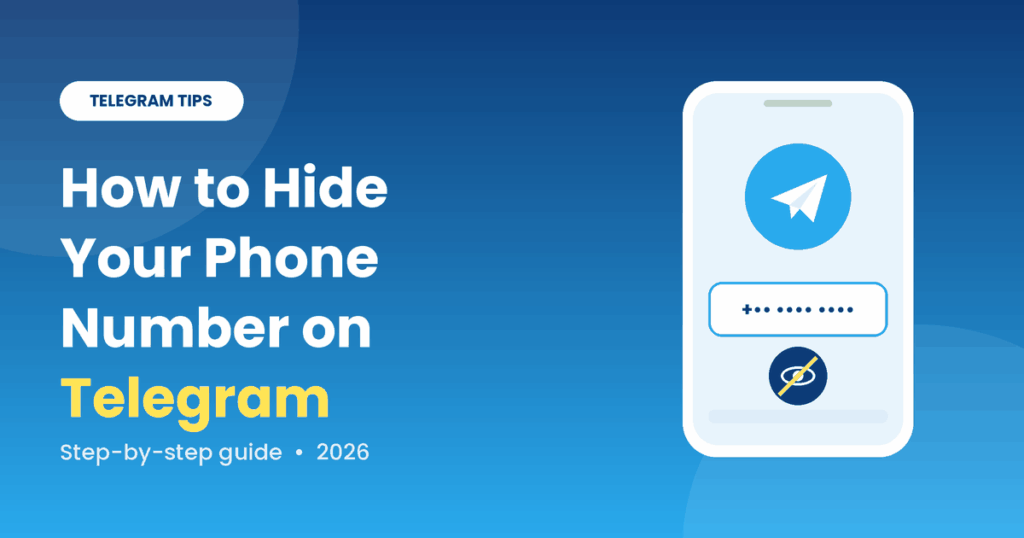
You join a Telegram group, say a quick hello, and a few minutes later someone you’ve never met is messaging you privately. Sound familiar? Many people don’t realize that Telegram can show your phone number to others unless you change a few settings.
The good news is that hiding your number takes about two minutes. In this guide, I’ll walk you through exactly how to hide your phone number on Telegram, on both mobile and desktop, plus a few extra tips to keep your account private.
Does Telegram Show Your Phone Number by Default?
Telegram needs a phone number to create an account, but that doesn’t mean everyone can see it. By default, your number is visible to people who already have you saved in their contacts. Strangers in groups usually can’t see it, but the default settings also let people who know your number find you on Telegram.
That’s why it’s worth checking your privacy settings, especially if you’re active in public groups, run a channel, or use Telegram for work.
How to Hide Your Phone Number on Telegram (Android)
- Open Telegram and tap the three lines in the top-left corner.
- Go to Settings.
- Tap Privacy and Security.
- Select Phone Number.
- Under “Who can see my phone number?”, choose Nobody.
- Below that, you’ll see “Who can find me by my number?” Set it to My Contacts if you want extra privacy.
That’s it. Your number is now hidden from everyone except the exceptions you choose to add.
How to Hide Your Phone Number on Telegram (iPhone)
- Open Telegram and tap Settings at the bottom right.
- Tap Privacy and Security.
- Tap Phone Number.
- Set “Who can see my phone number?” to Nobody.
- Set “Who can find me by my number?” to My Contacts.
The steps are almost identical to Android, so if you switch devices, you won’t have any trouble.
How to Hide Your Phone Number on Telegram Desktop
- Open Telegram Desktop and click the menu icon in the top-left.
- Click Settings.
- Select Privacy and Security.
- Click Phone Number.
- Choose Nobody and confirm the change.
The same settings apply across all your devices, so you only need to do this once.
What’s the Difference Between “Nobody” and “My Contacts”?
Telegram gives you a few choices, and it helps to know what each one does:
- Everybody: anyone on Telegram can see your number. Avoid this unless you have a reason.
- My Contacts: only people saved in your phone’s contacts can see it.
- Nobody: your number is hidden from everyone, apart from any exceptions you add.
Most people are best off choosing Nobody. If there are a few people you trust, such as family or close friends, use the Always Share With option to add them as exceptions.
Set Up a Username So People Can Still Reach You
Hiding your number doesn’t mean nobody can contact you. A username lets people find you without ever seeing your phone number.
Here’s how to create one:
- Go to Settings.
- Tap on your profile or Edit Profile.
- Select Username.
- Type in a unique username (it must be at least 5 characters).
- Save it.
Now you can share your link, which looks like t.me/yourusername, instead of your number. This is especially useful if you run a business, a blog, or a channel. People can message you freely and your personal number stays private.
A Few Things to Keep in Mind
Hiding your number is helpful, but it isn’t magic. Here’s what to remember:
People who already saved your number can still see it. If someone has your number in their phone contacts, Telegram may still show it to them. Hiding it only controls what other people can see through the app.
You can’t remove your number from your account. Telegram needs it for login and verification. You can hide it, but you can’t delete it.
Be careful with bots and mini apps. Some bots ask you to “share your contact.” If you tap that button, you’re handing over your number voluntarily, so only do it with services you trust.
Check your other privacy settings too. While you’re in the Privacy and Security menu, take a look at “Last Seen & Online,” “Profile Photo,” and “Groups & Channels.” These control who can see your activity and who can add you to groups.
Extra Tips to Protect Your Privacy on Telegram
Once you’ve hidden your number, a few more small changes can make your account safer:
- Turn on two-step verification. This adds a password on top of the SMS code, so nobody can take over your account with only your number.
- Limit who can add you to groups. Set it to “My Contacts” to avoid being dropped into spam groups.
- Review your active sessions. Under Devices, you can see where you’re logged in and remove anything unfamiliar.
- Use a separate number for business. If you handle customer chats or manage a public channel, a dedicated SIM or number keeps your personal life separate.
Troubleshooting: Why Can Someone Still See My Number?
If you’ve set your number to “Nobody” and someone can still see it, check these things:
- They may have your number saved in their contacts already.
- You may have added them to the “Always Share With” exceptions by mistake.
- Your app might be out of date. Update Telegram and check the setting again.
- The change may not have saved. Reopen the menu and confirm it says “Nobody.”
Frequently Asked Questions
Can I use Telegram without showing my phone number?
Yes. You still need a number to sign up, but you can hide it from everyone and use a username to chat.
Will hiding my number stop people from finding me?
If you set “Who can find me by my number” to My Contacts, strangers won’t be able to look you up using your number. They can still find you by your username, if you’ve set one.
Is it safe to share my number in Telegram groups?
It’s best not to. Even though groups usually don’t show your number, it’s smarter to keep it hidden and use your username instead.
Does hiding my number work on Telegram Web?
Yes. Privacy settings are tied to your account, so they apply on mobile, desktop, and web.
Final Thoughts
Protecting your privacy on Telegram doesn’t take technical skills. Just open the Privacy and Security menu, set your phone number to Nobody, and create a username so people can still reach you. It takes a couple of minutes and saves you from unwanted messages and spam.
Take a moment today to go through your settings. Your future self will thank you.