Most bloggers spend hours on the article and about ten seconds on the images. They drop a photo in, leave the name as IMG_4821.png, and hit publish. Then they wonder why nothing shows up in Google Images.
Images are a real traffic source, and they also help your normal rankings. Search is increasingly visual, and Google reads your images as part of the page. The good news is that image SEO is mostly small habits, and you can set them up in a few minutes per post.
Here is a step-by-step guide to doing it properly.
Why Image SEO Matters
Google can’t “see” a picture the way you do. It relies on the clues you give it: the file name, the alt text, the caption and the text around the image. If those clues are missing, your image is just a blank spot to a search engine.
Good image optimization helps in three ways:
- Image search traffic: people find your post through Google Images.
- Better page understanding: images reinforce what your article is about.
- Faster pages and accessibility: lighter images load quicker, and alt text helps people who use screen readers.
Google explains these basics in its own image SEO best practices, and it’s worth a read once.
Step 1: Use a Descriptive File Name
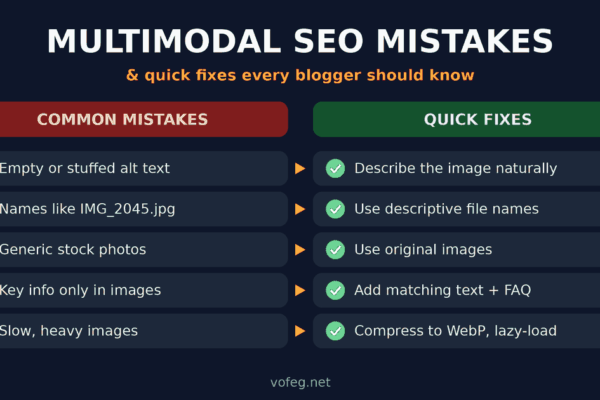
This is the easiest win and the one people skip most. Rename the file before you upload it.
- Bad:
IMG_4821.png - Better:
oxidised-jewellery-with-western-outfits.png
Keep these rules in mind:
- Use lowercase letters.
- Separate words with hyphens, not underscores or spaces.
- Describe the image in 3 to 6 words.
- Include your main keyword naturally, only where it genuinely fits.
Step 2: Write Useful Alt Text
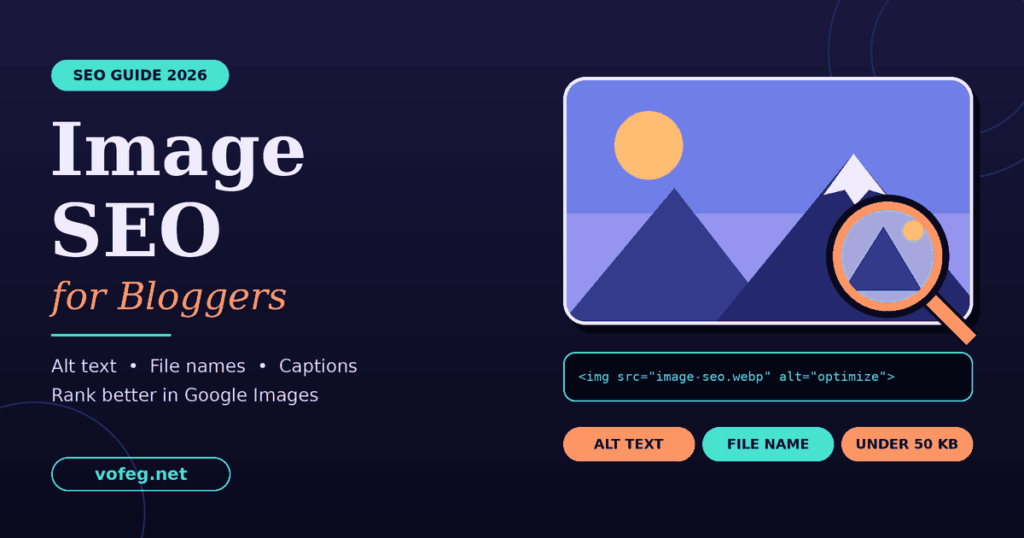
Alt text (the “alternative text” attribute) describes the image for search engines and for people who can’t see it. It’s the single most important image SEO element.
A simple formula: describe what’s in the image in one clear sentence, and include the keyword only if it fits naturally.
- Weak:
jewellery - Stuffed:
oxidised jewellery best oxidised jewellery buy oxidised jewellery online - Good:
Oxidised jhumkas, beaded necklace and rings styled for western outfits
Tips for good alt text:
- Keep it under roughly 125 characters.
- Don’t start with “image of” or “picture of.”
- Skip alt text for purely decorative images.
The W3C’s guide to writing alt text for images is a helpful reference if you’re unsure when to describe an image and when to skip it.
Step 3: Add an Image Title (Optional but Useful)
The title attribute shows as a small tooltip when someone hovers over the image. It isn’t a major ranking factor, but it can add context. In the WordPress media library, you’ll find it under “Title.” Write it like a short headline, for example: How to Style Oxidised Jewellery with Western Outfits.
Step 4: Use Captions Where They Help
Captions are the text under an image, and people actually read them. A caption can give extra context and keep readers on your page longer. Not every image needs one, but for featured images, charts and step-by-step visuals, a short caption works well.
Example: Best oxidised jewellery picks for jeans, dresses, co-ords and blazers.
Step 5: Compress Your Images (Aim for Around 50 KB)
Large images slow your page down, and slow pages hurt both rankings and visitors. For blog images, a good target is under 100 KB, and around 50 KB for featured images where you can manage it.
Quick ways to reduce size:
- Resize the image to the width it will actually display. A 4000 px photo is overkill for a 1200 px content area.
- Compress it with a free tool like Squoosh.
- Use modern formats like WebP where possible, which are usually much smaller than PNG or JPG at similar quality.
- Use PNG mainly for graphics, logos and text-heavy images, and JPG or WebP for photos.
The web.dev guide to images explains formats and sizing in plain language if you want to go deeper.
Step 6: Pick the Right Size and Dimensions
A common safe size for a featured image is 1200 × 630 px. It looks sharp on your blog and also works as a social share preview. Always set the width and height so the page doesn’t jump around while loading.
If your featured image isn’t showing properly when you share a link on social media, our guide on the LinkedIn Post Inspector shows how to refresh and check how your link preview appears.
Step 7: Place Images Near Relevant Text
Google looks at the text around an image to understand it. So put an image close to the paragraph that talks about the same thing. A picture of a sample schema code block should sit near the section about schema, not at the bottom of the post.
Step 8: Use Original Images When You Can
Stock photos are everywhere, so they rarely stand out. Original photos, screenshots, charts and custom graphics are more likely to be noticed and shared. Even a simple illustrated graphic with your brand colours can work better than a generic stock image.
Step 9: Lazy Load Below-the-Fold Images
Lazy loading tells the browser to load images only when the reader scrolls near them. WordPress now does this by default for most images, but check that your featured image isn’t lazy loaded, since it’s the first thing visitors see. Loading it right away helps your page feel faster.
A Quick Image SEO Checklist
Before you hit publish, run through this list:
- File renamed with a descriptive, hyphenated name
- Alt text written in one natural sentence
- Title and caption added where useful
- Image compressed (ideally under 100 KB, around 50 KB for featured images)
- Correct dimensions set (1200 × 630 px for featured images)
- Image placed near the relevant text
- Page tested for speed and mobile display
Common Image SEO Mistakes to Avoid
- Keyword stuffing alt text. It reads badly and can look spammy.
- Uploading huge originals. This is the most common reason blog pages feel slow.
- Using the same alt text everywhere. Each image should have its own description.
- Putting important text only inside an image. Search engines can’t reliably read it, so repeat key points in the article itself.
- Ignoring mobile. Most of your readers are on phones, so check how images look on a small screen.
Image SEO is just one part of getting noticed online. For the bigger picture of how search is changing, you can browse more guides on vofeg.net.
FAQs
Does alt text help with SEO?
Yes. Alt text helps Google understand your image and can help it appear in image search. It also makes your page more accessible.
What is the best image size for a blog post?
For a featured image, 1200 × 630 px is a safe choice. Keep the file size as small as you can while the image still looks sharp.
Should I use PNG, JPG or WebP?
Use WebP or JPG for photos and PNG for graphics or images with sharp text. WebP usually gives the smallest file size.
How long should alt text be?
One clear sentence, usually under 125 characters, is enough.
Do image file names matter for ranking?
They give Google a small but useful clue. A descriptive name is better than a random string of numbers.
Final Thoughts
Image SEO doesn’t need fancy tools. Rename your file, write honest alt text, compress the image and place it where it makes sense. Do this on every post and you’ll slowly build more visibility in Google Images and a faster, friendlier site.
Start with your next post, then go back and fix your older ones, beginning with your top-ranking pages. The effort is small, and it adds up.